
How to change your profile picture or choose a Winix avatar
Change your Winix profile picture, import a photo or choose an avatar, with annotated examples of the controls.
You can personalize your Winix profile with a photo from your phone, an avatar from the Winix gallery or your initials. If a Google profile photo is available on your account, you can select it too. Open the Avatar screen from your profile to change your choice.
Open the picture selector
Go to Profile and tap your avatar or its small camera symbol. The Avatar screen shows your current image, a preview of your selection and the available customization options.
Selecting a picture prepares the change. Apply it using Save at the bottom and wait for confirmation. In the French screenshots below, Enregistrer means Save.
Import a photo from your phone
- Tap Import — labelled Importer in the French example.
- Allow photo access when your phone requests it.
- Select an image from your library.
- Adjust the offered crop and check the circular preview.
- Tap Save.
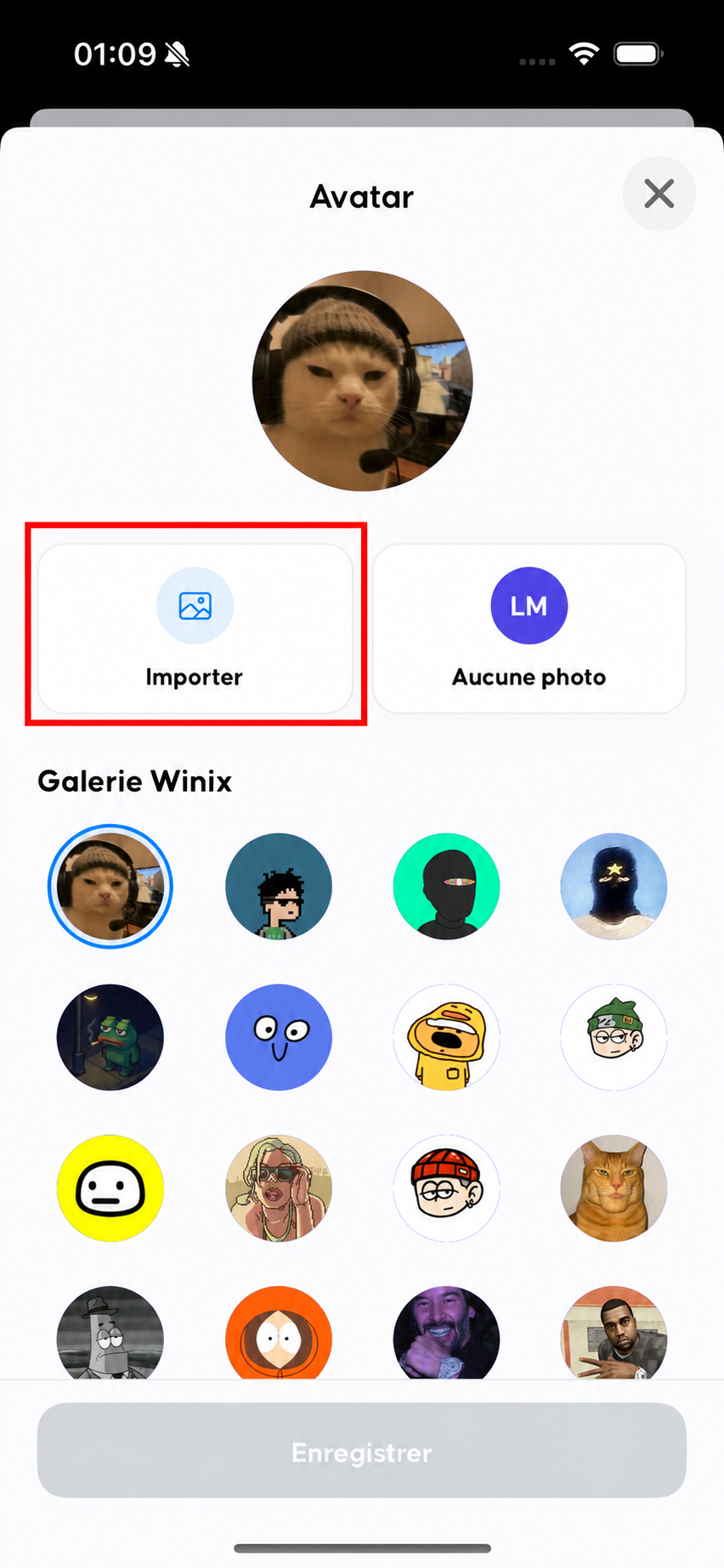
The red rectangle identifies the photo import option. The screenshot uses the French interface.
Choose an image with the subject near the centre: the profile displays a circular picture. Very small details or extensive text may be hard to read.
The app prepares the image before uploading. If it reports that the source file is too large, choose a lighter version. The current selector asks for a source image under 20 MB.
Choose an avatar from the Winix gallery
Prefer an illustration to a personal photo? Browse the Winix gallery, tap an avatar, check the preview and save.
Available options can change. If an avatar is no longer offered or cannot be saved, select another gallery image.
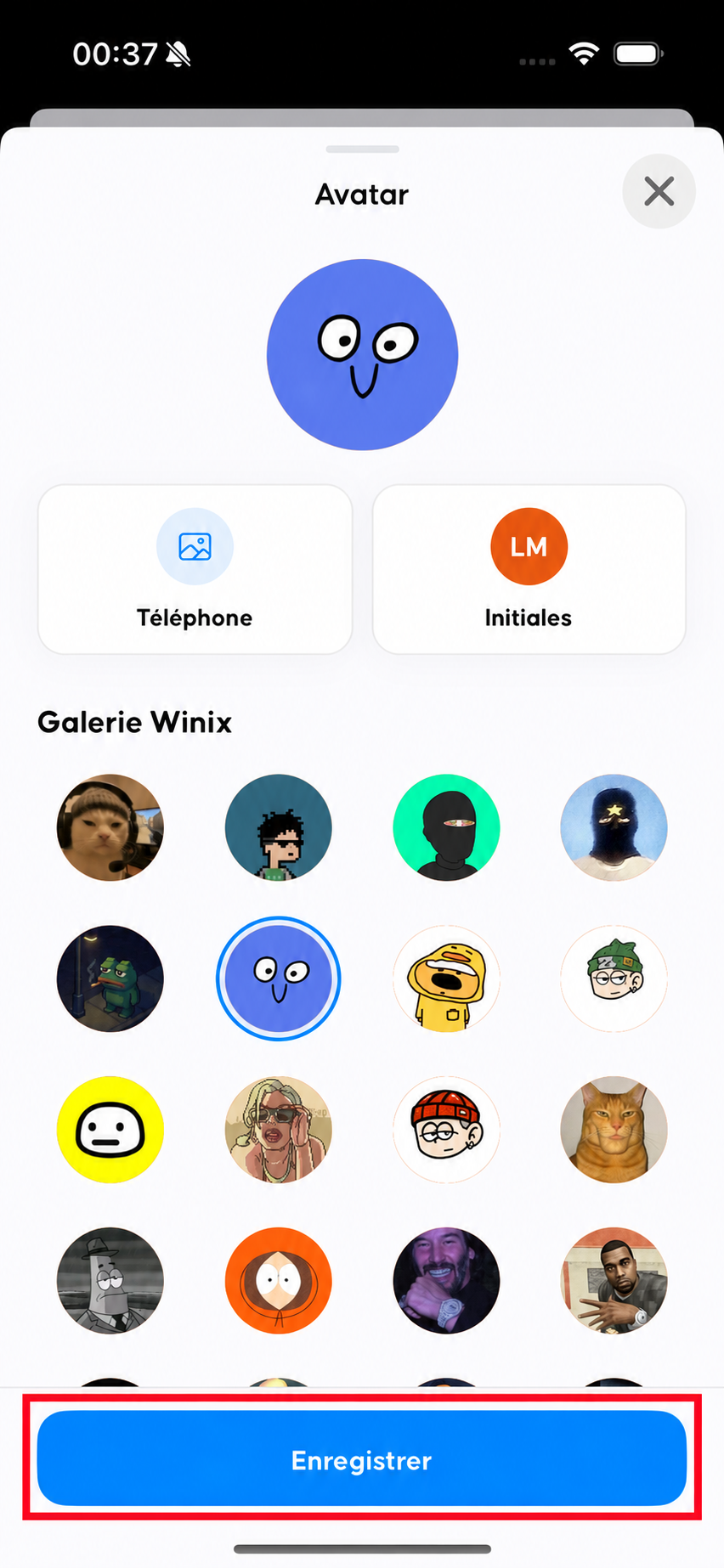
After choosing an avatar, use the highlighted Save button to apply the change.
Use a Google photo or display initials
The Google option is offered when your account has a usable Google photo. If it is absent, you can still import a picture, choose an avatar or use initials.
No photo, shown as Aucune photo in the French example, replaces the displayed image with your profile initials. Choose an available initials colour and save. This changes the appearance of your profile; it does not delete your account.
Why is Save disabled?
The button stays disabled when your selection matches the saved choice or no change is ready. Select another image or colour to prepare a new choice.
Wait for an ongoing save to finish before leaving. If an error appears, check your connection and follow its message. For a blocked import, check photo access in your phone settings too.
Your avatar may appear in chat and when other users view your profile. Choose an image you are comfortable showing and avoid personal contact details or documents.
For persistent issues, open Profile → Support. The support guide explains what information to provide.